(844) 343-1127
Are you planning to self-install your Spectrum cable box on the TV? With this guide, you can easily install and connect your Spectrum cable box to your TV and enjoy Spectrum TV® channels for endless entertainment in no time. Let’s get started:
Step-by-Step Guide to Connecting a Spectrum Cable Box to a TV
Let’s check out the steps you need to follow to connect your Spectrum cable box to your TV:
1- Check the Equipment
When you subscribe to a Spectrum TV plan and choose self-install, here’s what you’ll get in your equipment box:
- Xumo Stream Box or Spectrum Receiver
- Remote for the receiver
- Cables
2- Set Up the Receiver
Here’s how you connect your receiver to the TV.
- Connect the power to the receiver.
- Connect the power cord to the power port on the receiver and the adapter to the power outlet.
- Connect the coax cable to the receiver.
- Connect one end of the coax cable to the cable port on the receiver and the other to the coax cable outlet.
3- Connect the Receiver to the TV
Once your receiver is up and running, it’s time to connect it to your TV. To do this:
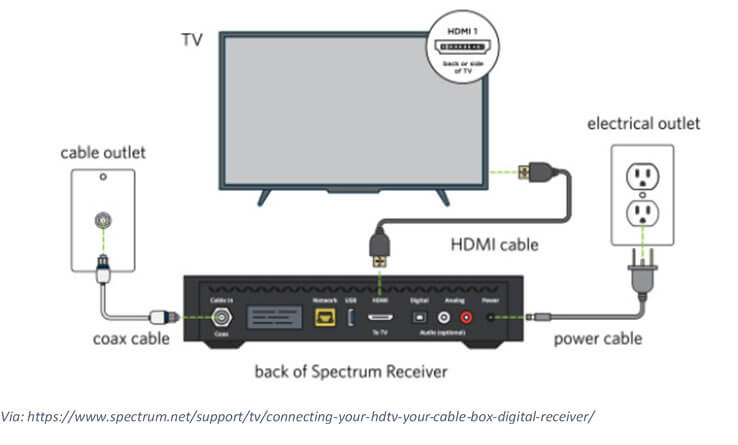
Using HDMI
- Use the HDMI cables from your equipment box to connect the receiver.
- Plug one end of the HDMI into the HDMI port of the receiver and the other end into the HDMI port on your TV.
Your connection will look something like this:
Source: Spectrum
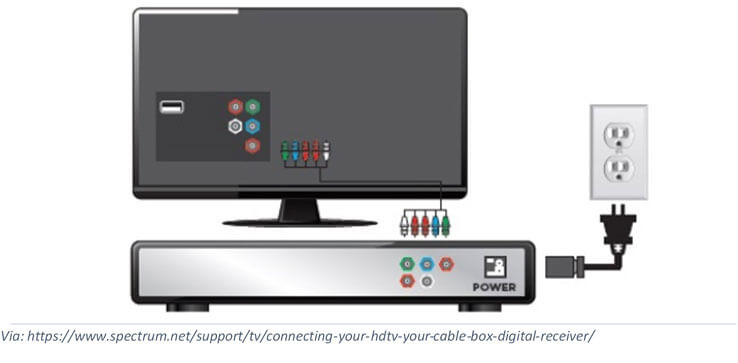
Using Component Cables
- If you don’t have HDMI, then you can use component cables to connect the receiver to the TV.
- Ensure that you are connecting the right color cables in their ports.
Your installed connection will look like this:
Source: Spectrum
In many cases, receivers don’t have component cables. You need to contact Spectrum customer service beforehand to know what kind of receiver you’re getting with the service.
4- Activate the Receiver
Now that you’ve connected your Spectrum TV receiver, it’s time to activate the receiver so you can watch cable TV. For that:
- Download, install, and open the My Spectrum App.
- Learn how to download the Spectrum TV app here.
- Sign in with your Spectrum account (username and password).
- Once logged in, head to the notifications.
- A notification for Set Up Equipment will be there.
- Select Get Started to begin setting up and activating the equipment.
- You’ll need to agree to the contract agreements.
- Select Agree & Continue to follow the prompts.
- You’ll find your equipment within the list of equipment.
- Select Set Up Receiver to continue.
- Make sure to select all the materials from the list alongside your primary receiver.
- A list of prompts will appear. Follow till you get the message: Establishing a Connection.
- Do not close the app or leave the screen.
- The app will activate your receiver automatically once it establishes the connection.
- Once the process is complete, you’ll receive a notification that your devices are activated and ready to use.
In case your devices turn off during the process, turn them back on and repeat the process for a successful activation.
Read more: How to Connect Spectrum Remote to the TV?
Wrapping Up
Following these steps, you can connect your Spectrum cable box to the TV easily. In case of issues or need help with troubleshooting, contact Spectrum customer services or Spectrum servicio al cliente.
FAQs
Why is my cable box not connecting to my TV?
It can be an issue due to input or connectivity. Check the connected cables to ensure they’re connected firmly, and restart your TV and receiver to establish a connection again.
How do I get Spectrum cable on my smart TV?
You can watch Spectrum cable through the My Spectrum App or by connecting your receiver box to the TV through HDMI.
How do I activate my Spectrum cable box?
To activate your Spectrum cable box, simply download the Spectrum TV app, check for equipment activation notifications, and follow the prompts to activate.
Related Blogs
How to Install the Spectrum TV App on Your Connected Devices and Mobile Phones?