(844) 572-2230

Moving to a new address and want to take your Xfinity internet, TV, or its other services with you? Don’t worry.
Our guide will walk you through the simple process of transferring your services to a new location. Let’s get started!
Moving Your Xfinity Services
Follow the steps below to move your Xfinity services to your new address:
1. Finding Your Address
The first thing you need to do is to locate your new address for Xfinity serviceability. For this:
- Log into your Xfinity account.
- At com/moving, find ‘Look up your new address.’ This will show if Xfinity is offering services in your chosen area.
- If Xfinity is not available in your chosen area, then visit the ‘Moving outside of the Xfinity service area’ section.
You can find this section in the ‘Move or Transfer Service’ option of your Xfinity account.
2. Entering Details of Moving
If Xfinity is offering services in your chosen area, you can proceed to enter the details of your move. The form will look like this:
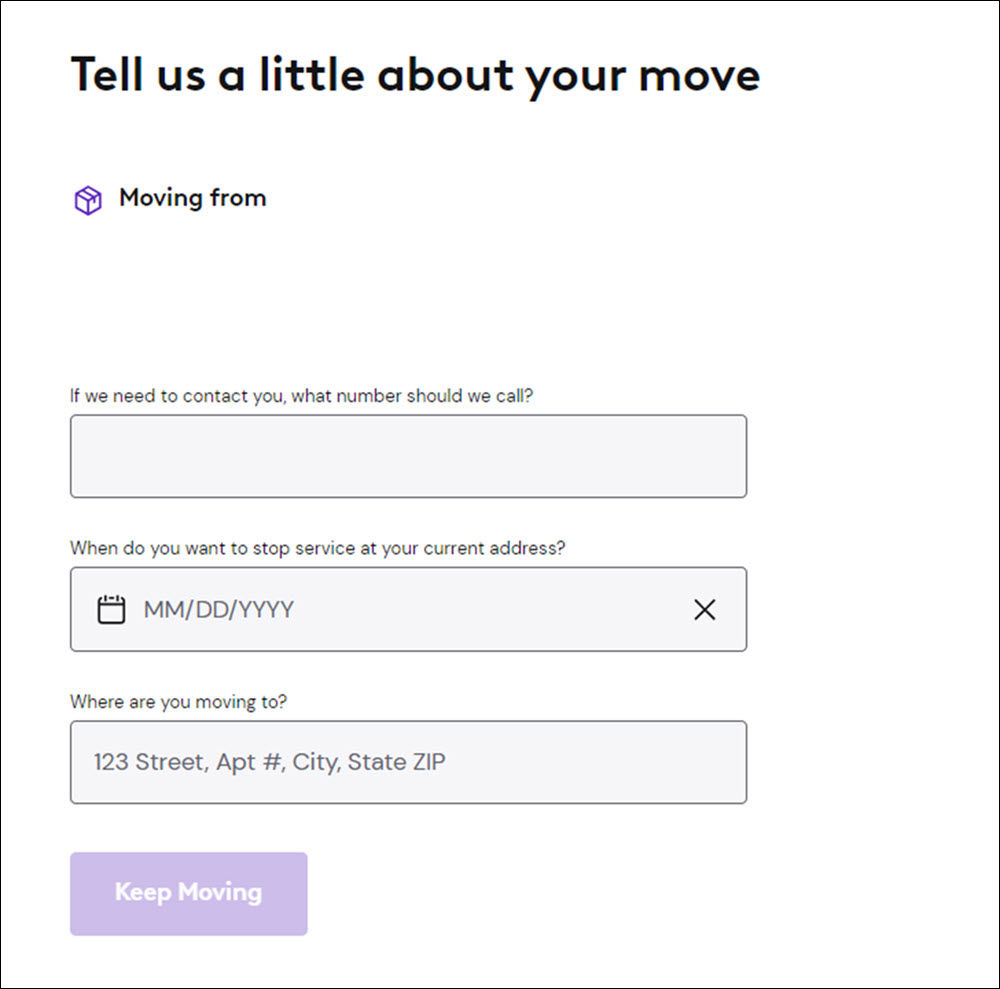
- You’d need to enter your contact number, the date you’re moving, and the location you’re moving to. Make sure to enter accurate details so Xfinity customer service can coordinate with you without any hassle.
3. Confirming Plan Details
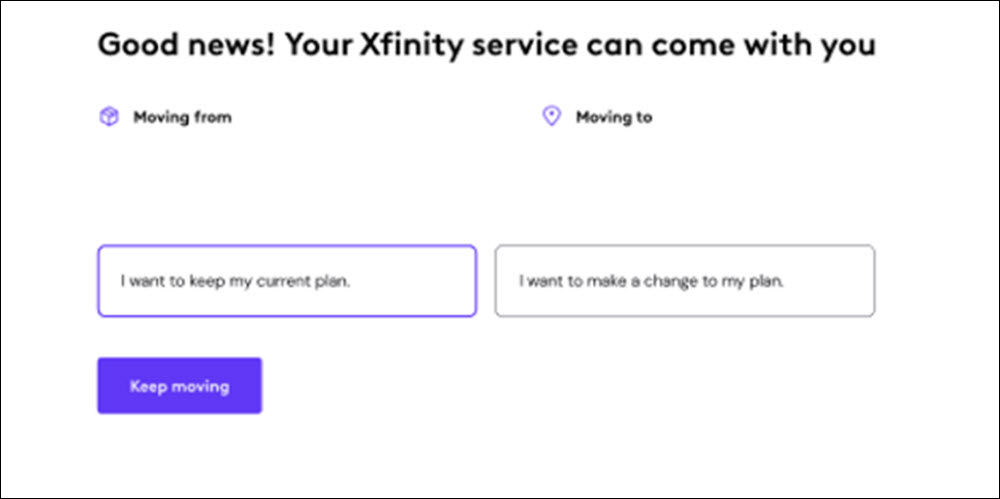
Xfinity allows its customers to alter their plans even when they’re moving to a new location. Hence, when you proceed with the form above, you’ll be prompted to make changes to your existing Xfinity services. You can simply choose ‘Keep Moving’ if you don’t want to make any changes. The form will look like this:
4. Choosing Your Installation Options
After you’ve done making changes or proceeded without making any, you’ll be directed to installation options. Here, you can find the details of your current plan. Xfinity offers its customers self-installation options as well as professional installation. The pricing for each will be mentioned on this page:

- If you choose to self-install your Xfinity services, you’ll need to enter the date when you’re starting/ installing the service at your new address.
- If you choose Self-Install Plus or Professional Installation, you’ll need to enter the date for the installation as well as select a 2-hour time slot for the technician to arrive.
- Once done, you can click on ‘Keep Moving’ to proceed.
5. Reviewing the Summary
This is the last step in moving your Xfinity services to a new address. On this page, you can review your information on moving, such as your new address, plan and payment details, installation method, etc.

And that’s it! By following the steps mentioned above, you can easily move your Xfinity services to a new address. In case of any issue, you can contact Xfinity customer service for assistance.
What Happens If My Address Outside Xfinity Service Area?
It’s a common question for many Xfinity service users. As per Xfinity, if you’re moving to a non-serviceable address, then you won’t be able to keep your Xfinity services (internet and TV). However, Xfinity Mobile users will be able to move their services to a new address.
You can call the Xfinity helpline at (844) 207-8722 and get help from support regarding this matter.
Frequently Asked Questions
Does Xfinity charge for moving my service to a new address?
No, Xfinity doesn’t charge you for moving your services to a new serviceable address. However, you may be charged if you choose Self-Install Plus or professional installation for installing your services at your new address.
Do I have to make a new Xfinity account when I move?
No, you don’t need to create a new Xfinity account when you move to a new address. If you’re moving to an Xfinity serviceable address, all you need is to provide your new address to Xfinity. The support will update your information, and you can continue using your Xfinity account after the update takes place in 1-2 weeks.
Read more: