(855) 771-3154
Spectrum Stream TV® Signature vs. Stream TV® Pro vs. Stream TV® VIP: Which Plan Fits Your Household?
What Affects Internet Speed? Factors You Can and Can’t Control


How many times have you found yourself asking, Why is my internet acting up now? A couple of times now and then, I’m sure. But have you ever wondered what actually affects your internet speed? What are the factors that you can control and monitor to improve the overall connection’s performance? Let’s start by looking at the factor that you can control.
Factors Affecting Your Internet Speed that You Can Control

1. Too Many Devices
Connecting multiple devices, all at once, means dividing your network speed and bandwidth among these devices.
Modern networks come with airtime fairness, allowing an equal time slice for each connected device. But with too many devices, this time slice would be too short to allow any process to complete. Hence, a controllable action here is to limit the number of devices connected to your network.
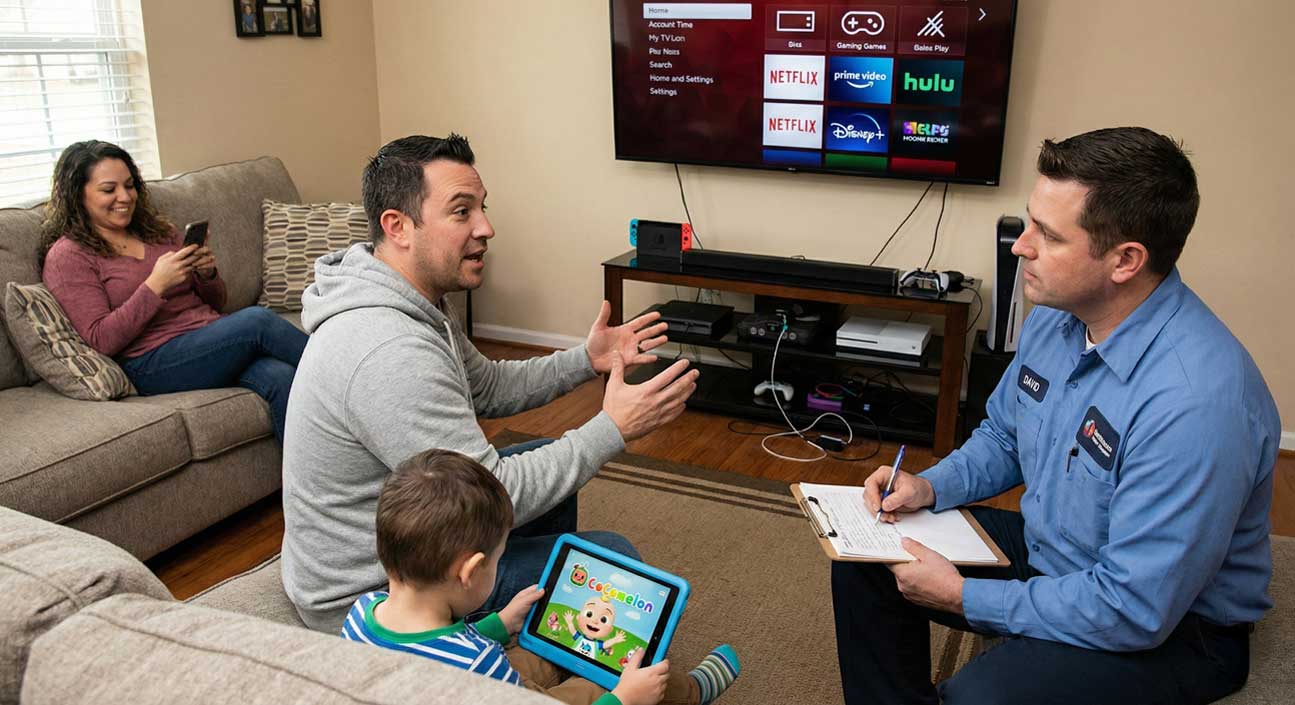
‘But David! I want to use my phone, run my stream, and my wife wants to watch Netflix, and my kid wants to watch Coco Melon all the time.’
Well, in that case, there are two things that you can do:
- Use a network switch, and connect multiple WiFi routers so not all devices are connected to the main network.
- Segment the network, creating a limit for what each SSID can use (creating a guest network and assigning 50 Mbps for the network only).
While these tips are technical and would require you to access the network settings, doing it will definitely resolve the speed issue and allow you to enjoy multiple devices on your network.
2. Low Speed Plan
But what to do if the entire speed of your internet plan is just 100 Mbps? You can’t run a game and stream alongside on a single device, let alone connect multiple devices. In that case, all you need to do is upgrade your internet plan.
Internet companies, including AT&T, Spectrum, Xfinity, etc., offer budget-friendly internet plans that you can always check out and upgrade. What’s more is that you can find Holiday Internet Deals right now and get your hands on discounted plans. So, if your internet speed is having hiccups, now’s the time to upgrade it.
3. Bad Router Location
This one’s not a shocker – we think that keeping our router warm and cozy, surrounded by its own kind (electrical appliances), will keep it happy, but that’s not the case. Your WiFi router is an individual piece of electrical equipment that is happier when alone and free in its own space.

If you keep it surrounded by other appliances, it won’t perform well. It’s because WiFi routers communicate using frequency waves. These waves are on the same spectrum as other appliances unless you change them.
You see, those fancy names and numbers for routers ‘dual band, tri-band, 2.4 GHz, 5 GHz aren’t just for the show. These are frequency bands that are meant to make WiFi communication more efficient.
If your WiFi is operating using 2.4 GHz, it will face interference from other appliances since they emit the same frequency waves. There are two things that you can do here:
- Change the frequency of your router to 5 GHz.
- Change the location of the router.
Doing the second one is easier and convenient. All you have to do is place it somewhere open, most likely in your lounge or even in your room, but away from appliances. You’d be surprised at the difference it makes.
Read our guide: Difference between 2.4 GHz and 5 GHz to know more about how WiFi frequencies operate.
4. Wireless Connectivity
Another reason for slow or interrupted speeds is that you’re depending on your WiFi router too much. If you’re using WiFi for gaming, then you’re not a true gamer at all because every gamer knows that WiFi gaming is as good as not playing online games at all.
For that, it’s highly recommended that you switch to wired gaming. Using an Ethernet to connect your gaming PC/ laptop will definitely improve the speed while ensuring consistency. Unlike WiFi, you don’t face signal or coverage issues with a wire.
Want to download something? Switch to a wired network. Want to stream while you game? Use a wired network to optimize the experience. Learn more about the differences between wireless and wired connections to know which one works best for your home network.
5. Cache Memory
Most people often ignore this because they’re unaware of it, but cache (pronounced as cash) plays an important part in optimizing your internet speed. System, network, and browser cache are the three pillars that you need to fortify here.
So, the cache stores the most frequently used processes and reloads them when you want to use them again. This means it’s faster than your RAM (in terms of processing), but it comes at a cost. Just like cinemas need to have popcorn ready for the customers, the cache needs to have a stock of resources too. One of these resources is your internet.
- System cache memory stores and boots your most frequently used processes. This includes your drivers, browser(s), game launchers, etc.
- The browser cache stores your history tabs. Just press Ctrl + Shift + T (for Windows)/ Command + Shift + T (for Mac), and your closed tabs will open.
- Network cache holds your recent configurations.
Clearing the cache helps release the resources that they were occupying, improving the performance as well as your internet speed.
- For clearing browser cache, simply head to the browser’s history and select ‘clear browsing history’. Make sure to check/ include ‘cookies, cached images’ to clear the stored cache.
- For clearing system cache:
- Turn on ‘Storage Sense’ from your system’s settings (Windows 11), which automatically clears temporary files.
- For Mac, head to click open the ‘Open Finder’, click ‘Go’ in the top menu bar, press ‘Shift + Command + G’, enter cache path: Type ~/Library/Caches and press Enter, select items (or press Command + A to select all), right-click, and choose Move to Trash.
- For clearing network cache, open the command prompt and type in:
- ipconfig /flushdns (for Windows)
- dscacheutil -flushcache (for Mac)
6. Pending Updates
Yes, those pesky updates that you’ve always deferred, just because your uncle said they slow down your PC, also mean a slow internet speed. Well, sometimes it’s your system updates, and sometimes it’s the router’s.
For the router updates, if you’re renting from a provider, then you don’t need to worry since they usually have auto updates on. But, if your internet is acting up, you can ring them up, and they can check and install if there are any updates pending.
As for your own router, you can simply reboot it to install its updates. Modern routers can download updates on their own and will need a simple reboot to install them.
Factors Affecting Your Internet Speed that You Can’t Control
Until now, we have seen various factors that were affecting your internet speed, but you can easily manage them. But what about the ones that you can’t? Let’s look at them below:

Weather Issues

Cable Disconnection
Outage/ Maintenance

Security Loopholes

Hardware Issues

Network Centralizer
1. Weather Issues
Bad news for those with satellite internet or wireless internet, the weather is your biggest enemy. Bad weather can impact the ‘line of sight’ for satellite and wireless internet connections. A rainy day, storm, or even clouds can disrupt the internet connection.
What’s worse is that you can’t do anything about it, and the customer service won’t be able to help either. As for the cable internet connections, the weather is not an issue.
2. Cable Disconnection
Earlier, we stated that weather is not an issue for cable internet users, be it coax cable or fiber cable. However, there are times when these cables get damaged, causing disruption or a complete outage.
If you’re experiencing an internet outage, you can contact your customer service to see if there’s an issue with the primary cable connecting your internet.
3. Outage/ Maintenance
While many providers claim high speeds, unlimited data, and other additional perks, no one claims zero downtime. Why? Because that’s something not possible. Providers need to run regular maintenance to ensure their internet connection stays up and protected.
For that, they need some time to carry out some technical magic that we don’t need to know. Sometimes it’s that, and sometimes it’s one of their engineers pushing the wrong script over the network, causing an outage (pun intended).
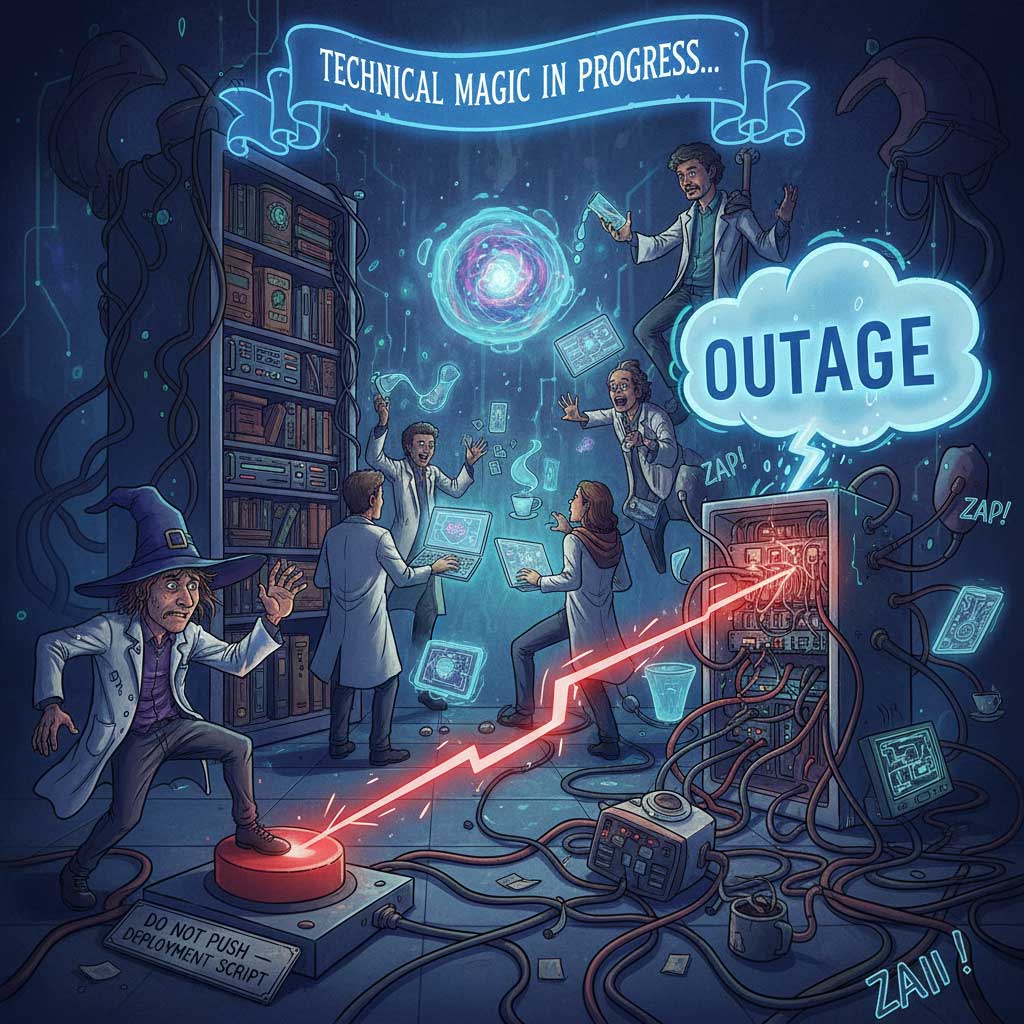
Anyways, you can check for an outage on downdetector.com or reach out to your provider’s customer service. But before you do, make sure to review your texts and emails, hoping to find a scheduled maintenance notice (just to save yourself from embarrassment later).
4. Security Loopholes
While providers and operating systems ensure that the security of your network stays strong, sometimes, it just can’t keep up with human minds seeking chaos. Hackers constantly navigate through networks, finding security loopholes.
If it’s not your network today, it can be any day, or it can even be your provider’s. Attack on the mothership, and you get its drones easily, just like the Chitauri. Point being, there’s no way to be sure that you’re protected by your OS or network security.
If your internet speed is acting up, there’s a slight chance that an unauthorized user is connected to it, hogging the speed.
Expert Insight: Not all internet plans offer the same level of protection. Find out what security features actually matter before you buy.
5. Hardware Issues
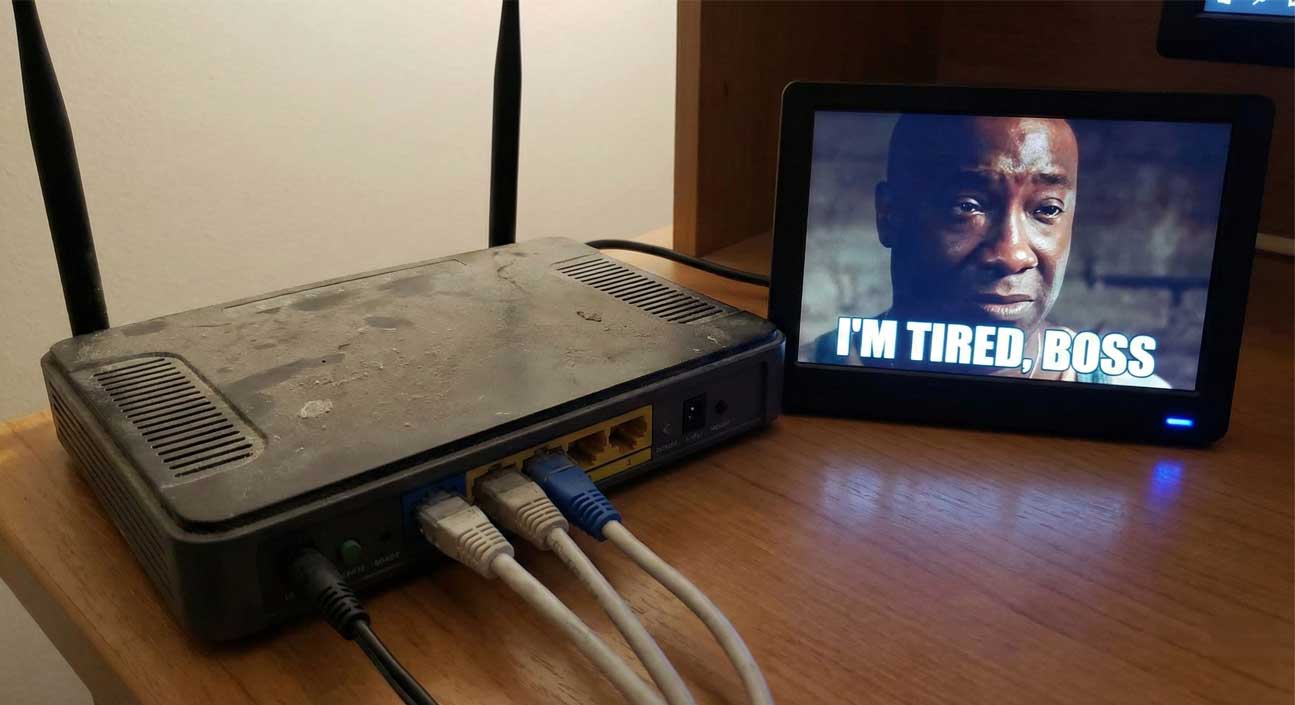
Whether it’s your device or the router that is as old as Uncle Joe down the street, hardware problems can cause internet speed issues. It’s not deliberate as Apple does with its updates (ouch), but your outdated device and router can disrupt your connection’s performance.
Therefore, if you’re experiencing issues, and your router hasn’t seen daylight in decades, it might be a sign to let it finally rest. However, you can give it a shot by cleaning it.
Use a dust blower or even a simple cleaning tool to clean it for once. Change the cables, update your device’s network drivers (if you cannot upgrade them), and run a speed test. If the issue persists, then you know what to do.
6. Network Centralizer
Let’s throw in some technical hocus-pocus. You may think that by buying an internet plan, a technician comes over and connects the cable with the modem at your place, while the cable’s stretched back to their office? That’s not how it works (bit surprised, right?).
Providers use devices called network centralizers. These are attached within the cabling to ensure the integrity of the data flow. However, the greater the distance between your node (connection) from the centralizer, the greater the chance of disruption.
Again, this is something that’s not in your control, and the most you can do is to complain repeatedly until the technician finally decides to install one near your connection. Or, they can convince you to get a new plan with greater speeds (that’s that).
Final Thoughts
So, now you know what’s causing all the ruckus with your internet speed and how you can resolve some of the factors. You can always reach out to customer services to get an idea of any outage or maintenance, or to upgrade your internet plan to get a better service experience.
Is your internet speed not meeting your needs? It’s time for a switch
Explore high-speed internet options at your address
Check Availability
FAQs
Is 2.4 GHz or 5 GHz faster? 
5 GHz is faster since it has less interference than the 2.4 GHz band. However, it has a lower coverage area than 2.4 GHz as well.
Should I change my router if my internet speed is slow?
Not necessarily, you can just reboot or reset it to let it install any pending updates. If the model is outdated and there aren’t any updates from the company, then you can consider changing it.
Can I get 100% internet speed?
No, the internet travels in data packets, and there’s always disruption in terms of packet loss, ping, etc.
Related Resources
Top Internet Deals for Students

Check for services and offers available in your area