(855) 771-3154
How to Optimize Your Home Wi-Fi: A Complete Step-by-Step Guide

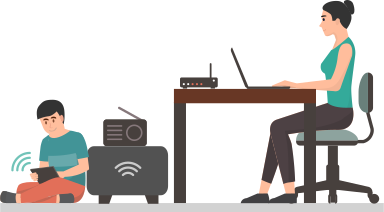
A fast internet connection alone doesn’t guarantee reliable WiFi connectivity in every room. To get the best coverage and speeds, you need to optimize your WiFi settings for devices connected wirelessly. From the router’s location to the number of devices connected, from WiFi settings to coverage requirements, there are several factors you need to consider for optimizing your home WiFi.
This guide walks you through the key steps to build a stronger, more reliable home Wi-Fi network. So, let’s begin:
Internet Speed vs. Wi-Fi Performance: What's the Difference?

Before we look into how you can optimize your WiFi, let’s understand how internet speed and WiFi performance differ:
- Your Internet Speed is what your internet provider delivers to your house via the connection. For instance, if you’re paying for a 300 Mbps plan, you get 300 Mbps delivered via this connection throughout your entire house.
- The WiFi Performance shows the speed that reaches your devices wirelessly. Unlike an internet connection, it’s prone to distance, interference, and outdated settings, causing it to lose more than a fraction, delivering less speed than the actual plan.
In other words, if you’re experiencing buffering, dropped calls, and lag even with a solid plan, the problem isn’t with your internet provider but your WiFi router. Therefore, you don’t need a faster internet connection but an optimized WiFi network.
Steps to Optimizing Your Home WiFi
Now that we know how important it is to optimize your WiFi network, let’s take a look at the step-by-step process to do it:
Step 1: Test Your Speed in Different Rooms Before You Change Anything

Before slicing and dicing your WiFi settings, take some time to test the internet speed of your devices connected to your WiFi router in different rooms. This not only gives you an idea of where the WiFi speed feels slow and unreliable, but you can also write this down as an initial reading.
Using this speed test tool, you can identify download, upload, and ping speeds for different rooms. Note them down and repeat for every room. After you’ve made changes to your WiFi settings, you’ll repeat the same process and compare the results to see if the changes made things better or not.
Step 2: Figure Out If It's Your Internet or Your Wi-Fi

When running a speed test, you can identify whether the problem is with your internet connection or the WiFi. Here’s how it’s going to help:
- Run a speed test once while standing near your internet router and once while stepping away in a room. If the speed drops, the issue is with your WiFi, not the internet connection.
- If the internet speed is slower than what you’ve subscribed to, even after running tests on multiple devices, then the problem is with your internet connection. Since the speed is already dropping, it will drop further when you move to farther spaces and run a test using WiFi.
The issue with your internet connection can be due to ongoing maintenance or an outage from the provider’s end in your area. It’s better to contact customer services timely manner so that they can troubleshoot the issue. However, in case the issue is with your WiFi, let’s move on to the next step.
Step 3: Place Your Router in a Better Location

If you tested the internet speed on your WiFi and it decreased as you moved farther, it means your WiFi is not optimally covering your house. This can happen due to poor placement of the internet router.
A router placed in a hot area, on the floor covered by something, or surrounded by appliances, metal objects, etc., can block its signals. To avoid this:
- Place the router in an open and centralized spot.
- Ensure that it’s not surrounded by appliances or blocked by anything on it.
- Avoid placing it near a microwave, baby monitors, or cordless phones, as their frequency can affect its signal.
You can check out our guide on the best places to put your WiFi router for more information. Also, when you’ve done changing the router’s location, you can run a speed test for different rooms, record the results, and then compare them with the initial readings to see if it made a difference. If not, then move on to the next step.
Step 4: Choose the Right Wi-Fi Band for Each Device

You might’ve come across the term ‘dual-band’ or ‘tri-band’ when purchasing an internet router. Every internet router emits WiFi signals at a set frequency rate. This rate, also known as a frequency band, determines the strength and range of the signals. Let’s take a look at the most commonly known available bands:
- 2.4 GHz band: has the highest range, passing through walls. However, it’s slow and more prone to interference from household appliances due to a similar frequency spectrum.
- 5 GHz band: is less prone to interference from household appliances because of having a different frequency spectrum; hence, faster. However, it has a lower range than 2.4 GHz and doesn’t pass through walls effectively.
We also have tri-band routers with frequency bands going as high as 6 GHz. However, these are only available in high-end devices, which are expensive for a household.
The point of explaining the bands is to help you apply the right band for your devices for optimal WiFi connectivity. Here’s how you can do it:
- Connect devices that are far from the router on the 2.4 GHz band. Ensure that these don’t require high speed to function.
- Connect devices near the router using the 5 GHz band for faster internet speed and less interference.
You can also check out our guide on the differences between 2.4 GHz and 5 GHz for a better understanding of how these operate and how to use them effectively.
Bonus: Check for Interference and Adjust Your Wireless Channel
While you’re selecting the frequency band best for your devices, there’s another fix that you can apply: changing the wireless channel. In most cases, neighboring WiFi networks can also affect your WiFi performance. The good thing is most routers allow adjusting the channel manually from the router’s dashboard.
If you’re using 2.4 GHz, you can adjust the channels to 1, 6, and 11, which have the least overlap with neighboring networks. In addition, some routers also support ‘auto-channeling ’, which allows the router to pick the least overlapping channel on its own.
Step 5: Update Your Router's Firmware
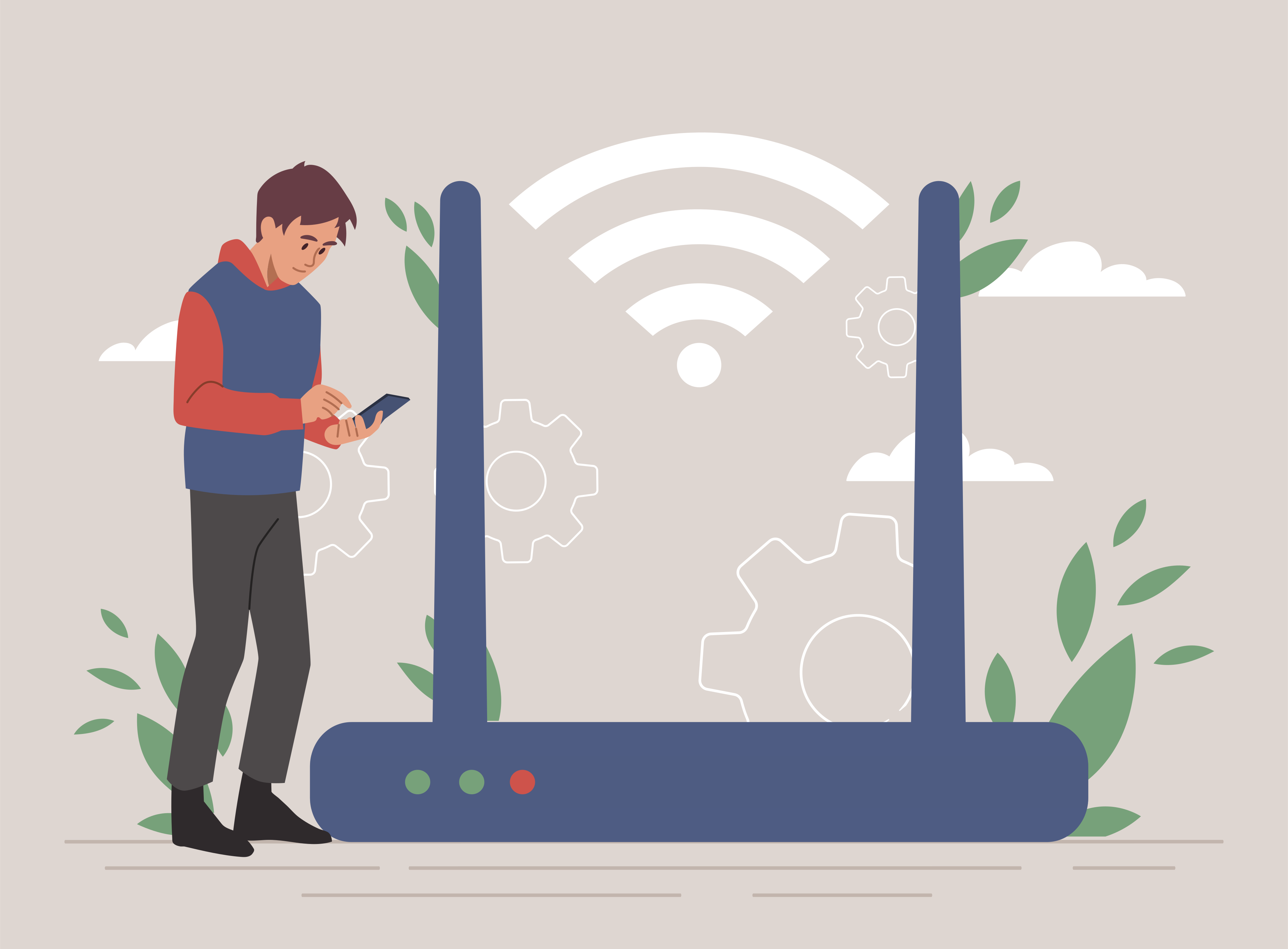
A good reason why your WiFi might not be performing optimally is because of pending firmware updates. Manufacturing companies release firmware updates fixing bugs and patch security issues, resulting in better router performance. You can check from the router’s dashboard whether there’s any update pending and install it.
Step 6: Secure Your Network and Review Connected Devices

An unprotected WiFi network is sabotaged by unauthorized devices connecting to it and hogging the bandwidth. One way of checking this is by accessing the router’s dashboard and looking for connected devices. If you see any irrelevant device, disconnect it immediately.
Next, head to the security settings and check for WPA2 or WPA3 encryption and enable the option for maximizing security. Proceed with creating a strong, unique password. Remember, if you change the existing password, you’ll need to connect all devices again.
Step 7: Disconnect Idle Devices and Check for Bandwidth Hogs

If changing the password doesn’t work and you still experience slow speeds on WiFi, then one or more connected devices may be hogging the bandwidth. Even an idle device uses a small amount of bandwidth while running in the background.
Accessing the router’s dashboard, you can actually see how many devices are connected to the network, and which device is using the most and the least bandwidth. This way, you can easily check the usage and decide whether to allow the device to continue using the network.
This is important since many a time a process or device is hogging the bandwidth by downloading updates in the background.
Step 8: Decide If You Need an Extender or Mesh System

If you’re using WiFi but the coverage issue doesn’t seem to resolve, then it’s time to make space for a WiFi extender in your network. A WiFi extender is ‘another router’ that connects to your ‘parent router’ and ‘amplifies’ the signals.
Important thing to remember: a WiFi extender only amplifies the signals, improving the coverage of your existing router. It does not improve the internet speed.
Another thing to note is whether you need an extender or a mesh WiFi network. A mesh WiFi network is built on multiple WiFi extenders connected to the primary router/ hub. This is installed in every room to create a mesh-like network, improving overall connectivity. It’s recommended for larger homes where a single WiFi extender would not be optimal.
You can check out our guide on mesh WiFi to get a better idea if it’s a good fit for your home.
Step 9: Know When (and When Not) to Upgrade Your Router

If you’ve applied the above fixes and have arrived at this point, there’s only one thing left to do, which is to upgrade your internet router. An old and outdated router can hinder your network’s performance, resulting in slow speeds and poor coverage. Here’s how to decide whether you need to upgrade the router:
Step 10: Re-Test Your Speed and Coverage

The final step towards optimizing your WiFi network is to apply the aforementioned fixes and recheck by running a speed test. Just like at the beginning, connect to your WiFi router while standing near it and then move into a separate room, creating distance.
If the speed improves, this means the issue was with your WiFi router and not the internet connection. If the speed doesn’t improve, it means the issue is with your internet connection.
Bonus Check: Use Ethernet for Devices That Need a Stable Connection
To verify if the issue is with your internet connection, use an Ethernet cable to connect your router directly to your device. Run a speed test on your device to see if you’re getting the speed that you’ve subscribed to. If not, then you need to contact customer service for an explanation.
Wi-Fi Optimization by Home Situation

Here’s how you can optimize your home WiFi for homes of different sizes:
Common Wi-Fi Problems and What to Try First

| Problem | What It Means? | What to Try First? |
|---|---|---|
| Slow WiFi in certain rooms | Weak coverage | Adjust router placement or add an extender |
| Slow speed everywhere | Internet connection issue or old router | Adjust router placement, upgrade plan, upgrade router. |
| Frequent WiFi drops | Interference or outdated router firmware | Adjust router placement, change frequency band, reboot router. |
| Slow Loading | Too many devices connected | Remove idle devices, adjust bandwidth allocation for devices. |
| Unknown Devices | Weak password or security | Change password, reconnect only authorized devices, install security updates. |
Home Wi-Fi Optimization Checklist

We’ve put together a quick WiFi optimization checklist to help you tackle key tasks and improve your network’s performance:
- [ ] Tested Wi-Fi speed in multiple rooms
- [ ] Confirmed whether the issue is internet or Wi-Fi
- [ ] Moved the router to a central, elevated, open location
- [ ] Connected devices to the right band (2.4 GHz vs. 5 GHz)
- [ ] Checked for interference and adjusted the wireless channel
- [ ] Updated router firmware
- [ ] Secured the network and reviewed connected devices
- [ ] Removed unused devices and checked for bandwidth hogs
- [ ] Used Ethernet for stationary, high-use devices
- [ ] Considered an extender or mesh system for weak areas
- [ ] Re-tested speed and coverage after making changes
Closing Thoughts
Following the steps in this guide, you can easily optimize your home WiFi and enjoy solid wireless performance for your connected devices. However, if the issue is with your internet connection, contact your provider for a plan upgrade or switch to a fiber internet connection instead of cable or any other connection type.
Check Out Our 10-Minute Guide to Finding Your Ideal Internet Plan
Or Simply Give Us a Call and Let Our Expert Team Help You
Frequently Asked Questions
Will restarting my router fix Wi-Fi problems? ![faq arrow icon]()

Yes, in most cases, rebooting your internet router reestablishes the connection handshake with your internet provider, removing minor glitches and improving WiFi performance.
Do I need a mesh system if I only have one dead zone? ![faq arrow icon]()
No, a mesh system is recommended for large homes with multiple dead zones. With a single one, you can change the router’s location or get a WiFi extender to deal with the issue.
How often should I update my router's firmware? ![faq arrow icon]()
You can check for a router’s firmware update every couple of months. Some manufacturers release these updates, prompting users to install them via the router’s software.

Check for services and offers available in your area