(855) 771-3154

Frozen screen, spinning wheel, and the agony of waiting – we’ve all been victims of buffering at least once in our lives. But there are ways to get rid of this nightmare once and for all. This blog covers the buffering fixes to use and enjoy a seamless streaming experience. Let’s dig in:
Why Does Streaming Buffer in the First Place?
To resolve the issue, we need to understand why buffering occurs in the first place. Here are a few common causes why streaming buffers:
- Insufficient Speed: too many devices or high-quality streaming running on a low-speed internet? Buffering is sure to occur every second.
- Weak WiFi Signal: connected wirelessly in the far corners of your house? Weak signals result in buffering very often.
- Too Many Devices: high-speed internet, but using it on too many devices? Shared network performance will result in buffering.
- Speed Throttling: facing buffering during specific hours? Your ISP might be throttling the speed during peak hours, resulting in the issue.
How to Fix Buffering While Streaming?
Now that we know the potential reasons for what causes buffering in the first place, let’s take a look at how to stop buffering with the fixes given below:
1- Restart Your Gateway
Restarting your internet gateway (modem/ router/ combo) helps resolve most of your internet issues (really). The reason is that rebooting your gateway reconnects it to your primary ISP hub, resetting the connection, and installing any pending firmware/ security updates. Resultantly, you get improved speed and signal strength.
Simply press the Power button placed on the back of your gateway to turn it off. Wait for at least 60 seconds, and then turn it back on. Once it does, connect your device to your gateway and run a speed test.

2- Change Gateway Placement
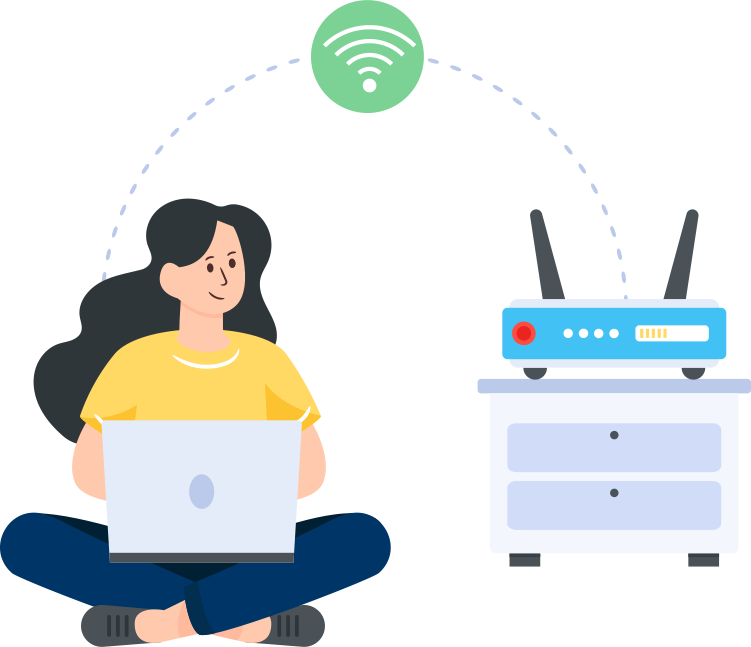
As mentioned earlier, weak WiFi signals can cause buffering during streaming. Therefore, if you’re connecting your devices wirelessly, it’s better to change their location to ensure ample coverage and high signal strength.
Placing it near the windows, open spaces, and away from appliances can help improve signal quality. Using your devices nearest to it can also minimize signal interference due to walls, objects, or radio waves from nearest appliances. In other words, a simple router placement can positively impact the overall performance of your internet speed and streaming experience.
3- Switch Frequency Band
Earlier, we mentioned changing the gateway’s location to ensure minimal interference from nearby appliances. This is because, like gateways, appliances also emit radio waves at the same frequency, 2.4 GHz.
Modern-day gateways come with dual-band (2.4 GHz and 5 GHz) or tri-band (2.4 GHz, 5 GHz, and 6 GHz) technology. With added band-steering technology, these gateways pick the best frequency to minimize interference.
Even if your gateway doesn’t have a band-steering function, you can:
- Log in to the administrator account.
- Use the credentials given on the gateway.
- Head to WiFi settings.
- Change the frequency from 2.4 GHz to 5 GHz.
- Hit Save to apply the changes.
4- Use a Wired Connection
If you’re worried that your WiFi can disrupt your streaming, then it’s better to use a wired connection. A wired connection is not prone to signal interference from objects or appliances, resulting in a smooth, buffer-free internet experience. Simply extend an Ethernet wire from the gateway and connect it to your device to make a wired connection.
5- Reduce the Number of Connected Devices
Sometimes, it’s not your gateway that’s the issue but the devices connected to it. If you’re using smart home devices, there’s a great chance you might’ve connected too many for the network to sustain its speed.
Moreover, networks are automatically designed to give priority to processes running on the devices. A download, for instance, can consume most of the speed in order to complete it as soon as possible.
When this happens, you’re most likely to face gaming and streaming lag. To avoid this, simply head into the network’s dashboard and check for connected devices.
Disconnect them manually or disable the network’s connection to free up speed. Test the streaming device to see if it has improved.
6- Clear Device Cache
Cache acts like a temporary anchor that the memory reaches out to execute processes quickly. However, just like storage space, cache gets filled with too many addresses, each ready to be executed while holding on to resources such as internet speed.
If you’re experiencing buffering during streaming, you can clear the application’s cache. Whether it’s a streaming platform like Netflix, Prime, etc., or any other program, head to its information panel and hit Clear Cache.
7- Installing Updates
Another good reason why there’s buffering on your devices is pending updates. Updates are meant to install important firmware patches, build to improve functionality, and improve security and performance.
You can check for pending updates from the OS’ manual or use third-party tools to check for updates. Either way, installing these will surely remove bugs in the app. While you’re at it, ensure you reboot your gateway to install any pending updates too.
8- Lowering Video Quality
This fix is only for those who are streaming in 2K quality or higher. With a higher resolution, the platform requires more speed and bandwidth while consuming data at an alarmingly high rate. If your internet plan doesn’t support it, you’re meant to face buffering.
A simple way to reduce buffering is to lower the resolution to HD (1080p or 720p). This adjusts the bandwidth requirement, making it easier for your internet plan to accommodate the stream. However, if you’re already streaming in 1080p resolution and still experiencing buffering, your internet speed may not be sufficient, and it might be time to upgrade it.

9- Upgrade Your Plan
Lastly, upgrading your internet plan can help minimize buffering during streaming. With a higher internet speed and no data cap, you can easily set the resolution to your desired number (given the specs are enough) and not worry about pauses or disruptions. For this, you’ll have to connect with your internet service provider to upgrade the plan.
10- Upgrade Equipment
If you’ve been using an internet or streaming device for more than a couple of years, it’s time that you put it to rest. Upgrading your devices can help prevent buffering as well as performance issues. You won’t need to run internet or network troubleshooting anymore on your new device and can expect outstanding performance too.
Final Thoughts
Your binge-watching session should be spot on, and buffering should be the least of your worries. Use the tips given above to minimize buffering and maximize entertainment! In case buffering continues despite trying these solutions, get in touch with our experts for help.
FAQs
Does higher resolution cause buffering?
Yes, higher resolution means you need higher internet speed. If your internet speed isn’t enough, you can expect buffering throughout the stream.
Can upgrading equipment improve internet speed?
Yes, upgrading your old equipment can significantly improve internet speed, throughput, coverage, and signal strength.
Is 100 Mbps enough for streaming in 4K?
Yes, a dedicated 100 Mbps internet speed is enough to run 4K streaming.