(855) 771-3154

Need internet when you’re on the go? Your phone’s WiFi hotspot can instantly turn your mobile data into a secure connection. This blog guides you through the process of turning on your phone’s WiFi hotspot and provides key tips to help you stay connected wherever you are.
Turn On Wi-Fi Hotspot On Your Phone
Let’s check out the steps to turning on the WiFi hotspot on your phone:
For iOS
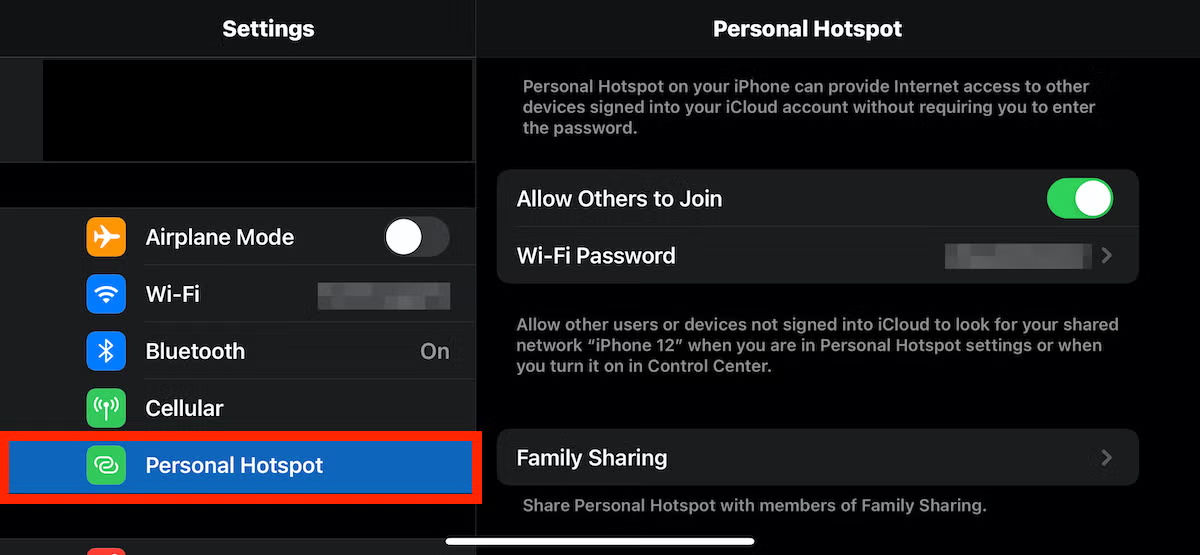
If you’re using an Apple device, here’s how you can turn on the WiFi hotspot:
- Head to Settings and tap on Personal Hotspot.
- Or, tap on Cellular, and then on Personal Hotspot.
- Turn on the option of Allow Others to Join.
- You can also enable Family Sharing to allow your family members to connect to this hotspot automatically.
For Android
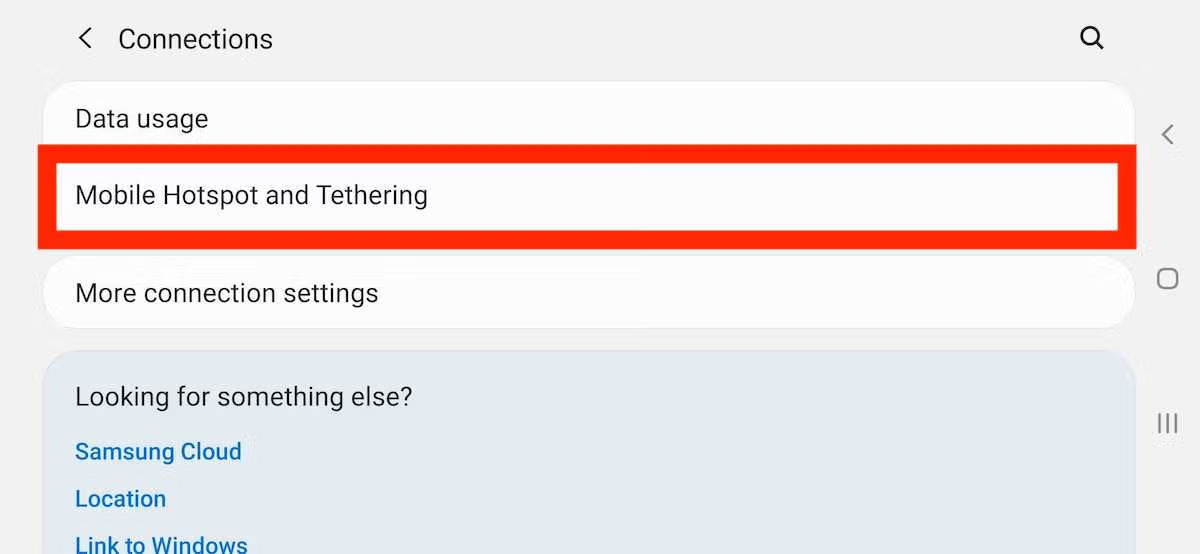
If you’re using an Android, here’s how to turn on its WiFi hotspot:
- Swipe down on the menu and find Hotspot.
- If you can’t, tap on the option of Edit.
- This brings up the options of Buttons/ Widgets that you can add to your menu.
- Find and drag the hotspot icon.
- Tapping once will turn on the hotspot.
- Long-press to open Hotspot Settings.
Find & Change Your WiFi Hotspot’s Password
Now you know how to turn on the WiFi hotspot on your phone. But, in most cases, the default password is complex and factory-set, which is why you need to change it. For that, you need to find and change your WiFi hotspot’s password. Let’s check out how to do it:
For iOS
- Head to Hotspot Settings on your device.
- Within your Hotspot’s Settings, click on Password to show the password.
- Clear the old/ default password to create a new one.
- Hit Save to store the password. Use the newly created password to connect to your WiFi hotspot.
For Android
- On your Android, long-press on the Hotspot Icon to head into Hotspot’s settin
- Find the Password given in the settings.
- Click on it to change it and hit Save to store the new password.
Why is Your WiFi Hotspot Slow?
In case you’re experiencing slow WiFi hotspot speeds, there can be several factors behind it, including but not limited to:
- Data limit
- Hotspot frequency
- Battery saver mode
- Background apps
Check out our blog for the complete list of reasons why your WiFi hotspot is slow, along with their fixes. Meanwhile, you can also check for your hotspot’s speed with our speed test tool below:
Best Internet Providers for WiFi Hotspots
If you’re using your phone as a WiFi hotspot, you need to ensure you have the right amount of data/unlimited data, as well as the speed to accommodate connected devices. Here are the best 5G internet plans for running your WiFi hotspot smoothly on your phone:



Wrapping Up
Well, there you have it! Now you can easily turn on a WiFi hotspot on your phone and stay online on any device you want wirelessly. Just ensure that you don’t run out of your data, so your hotspot doesn’t disconnect. However, if it does, connect to a public WiFi for internet access.
FAQs
How do I use my phone as a hotspot?
You need to turn on the WiFi hotspot option on your phone. Then, connect your devices to this network and use the internet.
How much data does a WiFi hotspot use?
A WiFi hotspot shares your data with the connected device. Whatever the device runs, your data will be used accordingly.
How can I save my data on a WiFi hotspot?
You can create a data limit on your phone. This way, your mobile data will pause once you reach the set limit. Ultimately, it will pause data sharing on your hotspot as well.
Related Blogs
Is Xfinity Hotspot Free for Customers?
What Does ‘Unlimited Data’ Really Mean for Your Home Internet Plan?